
MSCRIPT QUICK FIX – Taming the Space Bar
Having used both TASWORD and MSCRIPT the latter’s annoying space bar skip needs a cure to make word processing a time-saving proposition.
The solution is given in Jeff Mazur‘s Intermediate/Advanced Guide (SAMS), on page 214. You can change the auto-repeat feature by POKEing a longer delay, which is normally set at 1/12th of a second.
The POKE is at address 23562. The value at this location indicates the delay, which initially is 5. Changing this to a larger number up to 225 will lengthen the delay. It will affect all keys, but if the value is reasonably set the space bar problem is cured without hindrance to normal typing.
On my 2068 I found that
POKE 23562,20entered before LOADing MSCRIPT did the trick. Slightly larger values may work better on other 2068s. Experimenting with them has a useful payoff.
Bob Whitaker
Arlington, VA
November 12, 1985
Dear Mark:
Herewith a couple of items for the CATS Newsletter. The smaller one is the more useful – the larger one a space-filler if needed. Please feel free to edit.
Having had to miss several meetings since early summer, I’m not current on what has been covered in them. However, if not recently discussed, the subject of printers might be an appropriate topic.
This comes to mind from a conversation with another individual at the November meeting. Like me a few months ago, he was interested in buying a full-size printer, but had no idea of features or relative merits among affordable choices, whether an interface was needed and if so, which one, etc.
Largely due to a favorable review in Creative Computing (there’s another one down the tube!) I mail-ordered a STAR SG-10, which turned out to be the right choice for my needs. It could have been otherwise, though, had I not had the time to dig through the literature.
Addressing the quirks of imbedding printer codes is an allied topic. I was surprised so few were interested in that at the last meeting – perhaps because it was related to MSCRIPT.
Your help and that of others in the group has made the difference for me between frustration and progress in this alien world of computers. I’m indebted to all of you.
Regards,
Robert M. Whitaker
[address omitted]
MORE INTERFACING
VERN, VERN, VERN______ Letter to the Editor
A letter from Vernon Smith of Fairfax, VA (Washington DC area) to ATSU’S MEMOTECH Users Sub-group was seen by Donald Guess, Jr. who edits that section of the magazine and is creative director for the whole publication.
Donald contacted me about the letter. Don always kept me informed about how these interface troubles are on the rise within the Sinclair world of computing. This letter touched off the effort compiled within the first half of this issue. Don contacted Mr. Karl Smith in Pataskla, Ohio. Karl has just about every type of ROM switching device or software, interfaces, and word processor programs. Karl has experience working with different types of combinations of all the above.
Vern’s letter was forwarded to Karl which appears below. Karl’s answer back to Vern was detailed and well done. Because we know alot more of you are having the same troubles explained below; we decided to publish these letters and the preceeding articles.
August 14, 1985
Dear Sirs,
I am writing you to see if you can assist me in clearing up some of my printing problems. I have a Timex Sinclair 2068 computer with a Russeel ROM switch and a MEMOTECH DMX80 printer. I have two interface units, an AERCO and a TASMAN Type B which was purchased, with software, in England.
The first problem comes when running the Spectrum version of Tasword II with the Tasman interface. Following the Tasman I/F directions, I customized the interface and saved it to tape. I then took the following steps:
1   CLEAR 64715
2   LOAD "" CODE (For the Tasman I/F)
3   RAND USR 64719
4   LOADed Tasword II and "Tutor" text
    file
5   Exited to Print mode, answered
    spacing & line feed questions and
    then tried to print.
6   Screen showed "Press q to stop
    printing" but printer did not
    activate. Tried to return to text
    file and/or break into program
    with no luck. Had to turn off
    power to get out of print mode.
I am really stumped since I use the same Tasman I/F code with Omnicalc II and it works correctly. I also have a copy of Tasprint and have been able to use the Tasword program with it.
My second question concerns the AERCO I/F. I am trying to use it with the 2068 version of Tasword II. I know the I/F is OK since I am able to run the same indications as I do with the Tasman. I haave been told that you don’t use the driver software but instead use a series of POKEs. If this is so, could you furnish them to me along with their addresses.
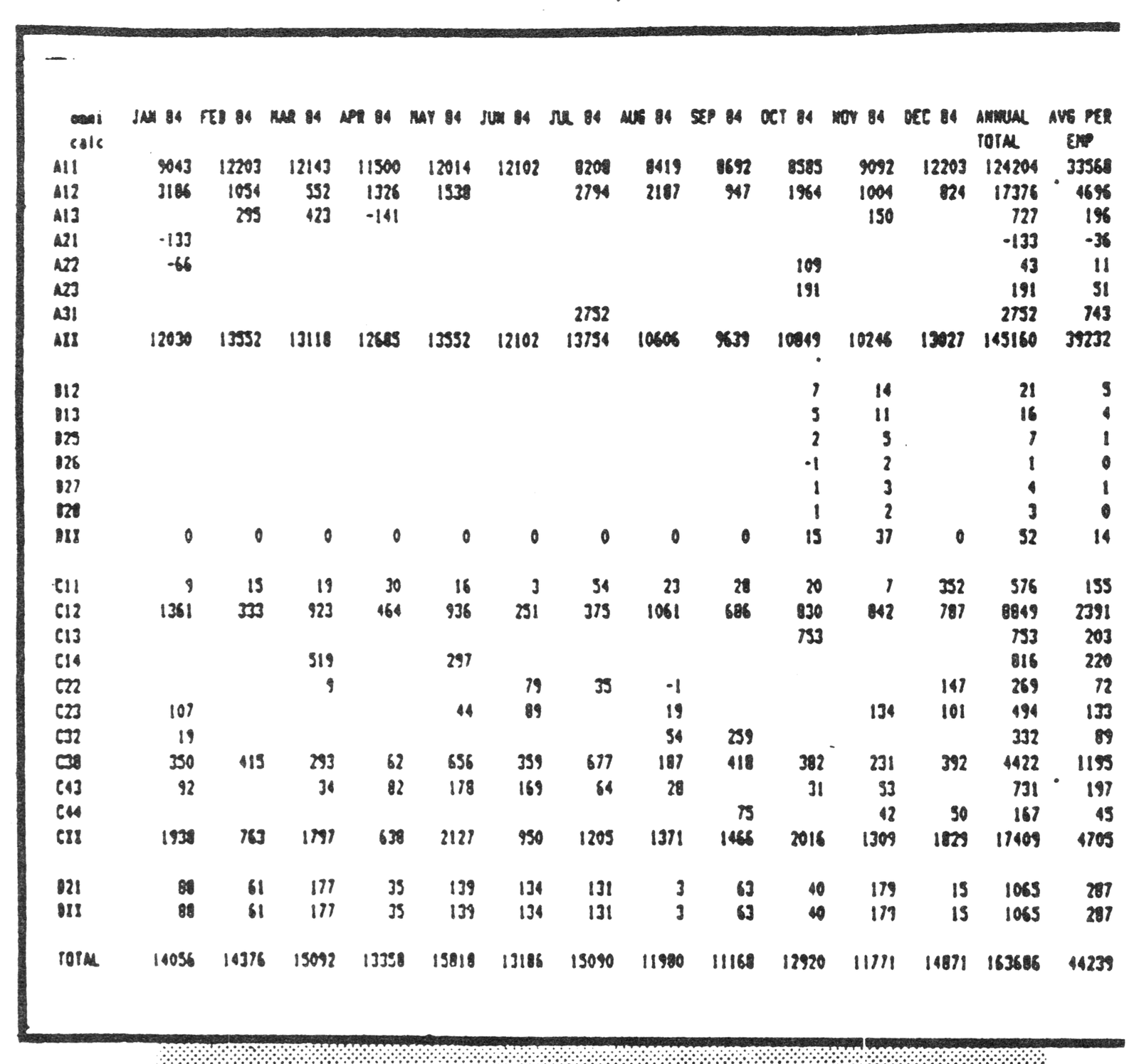
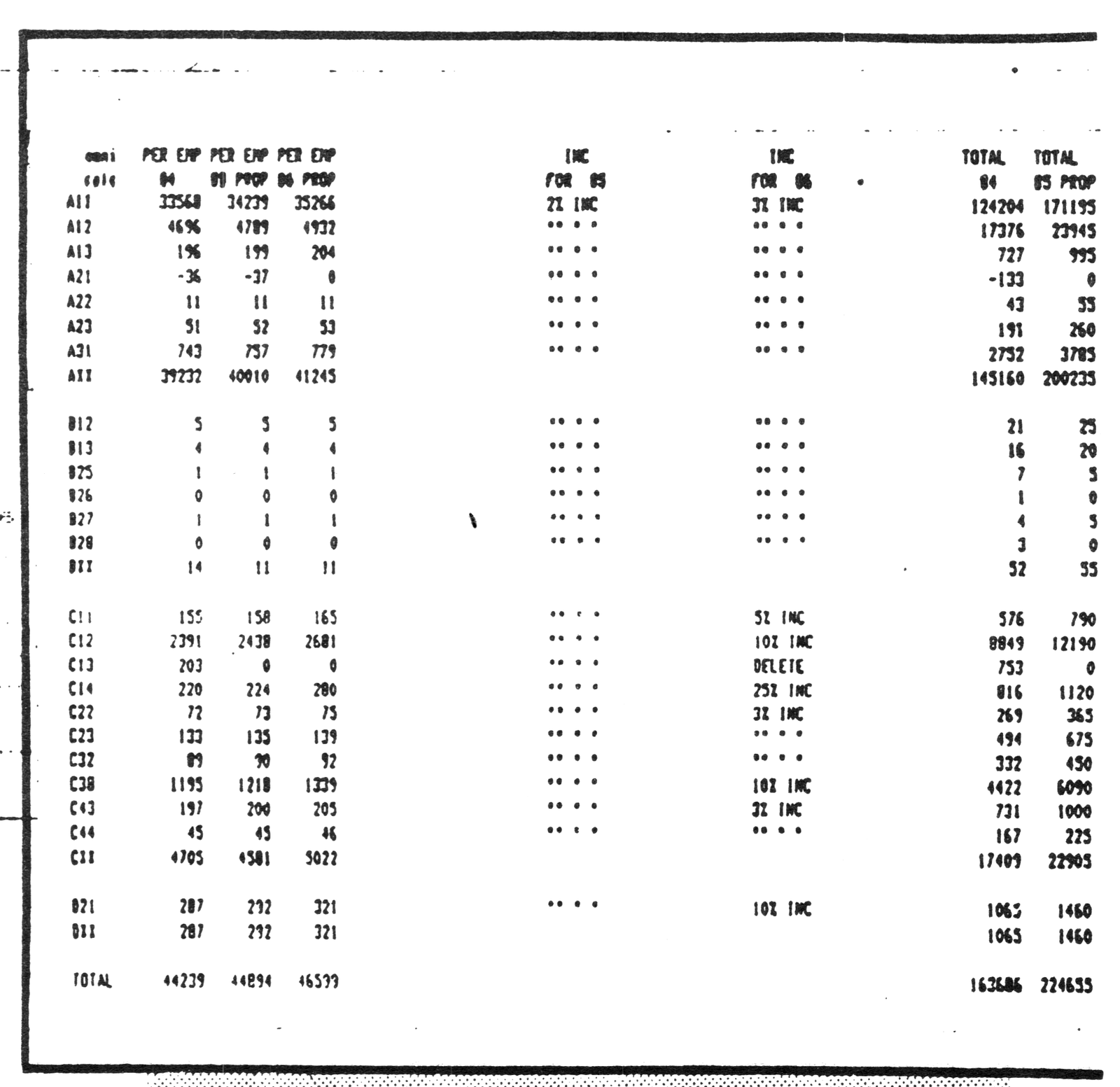
My last question concerns using Omnicalc II with either the AERCO or Tasman I/Fs’. I would like to know how I can get Omnicalc to print out in the condensed mode rather than either the Elite or Pica modes that I get by setting the printer dip switches. Without the condensed type, I’m only able to get 9 columns; but with condensed print I’d be able to get an entire years’s spread sheet on the page. Any help on this problem would be greatly appreciated.
Sincerely yours,
Vernon R. Smith
Vernon,
My name is Karl Smith. I am a member of the ATSU Home Computer Users. I was contacted by Don Guess, club vice-president, in regards to some difficulties you were having with the Taswaord II and Omnicalc II programs.
My stituation seems to be somewhat similar to your’s in that I have a 2068 computer, DMX80 printer, AERCO centronics interface and the two programs you mentioned in your letter. I can relate to you some of my own experiences with this software. Hopefully they will be of some benefit to you.
The enclosed sheets describe how I approached the situation. In addition to the attached sheets, here are some more goodies available with the Tasword program.
Multiple Printouts (full width printers)
Add the following lines:
251 LET i=14: PRINT AT i,0; "No of copies
    (1)": GOSUB 6000: IF a$=" " THEN LET
    a$="1"
252 LET k=VAL a$
279 FOR i=1 TO k
281 NEXT i
If q is pressed to quit printing, it must be held down for some time and some of the start of the text will be repetitively printed before printing stops.
Left Margin on Printing
The following program line can be added by users who frequently wish to change the left margin on printing and advoids having to go through the “define graphics/printer option”:
253 LET i=16: PRINT AT i,0; "Left Margine
("PEEK 60927;")": GOSUB 6000: IF a$ <> " "
THEN POKE 60927,VAL a$
Modifying The Help Pages
To modify the normal mode help page enter Basic and execute:
FOR i=0 TO 1535: POKE (33280+i),PEEK
(54784+i): NEXT i
The 2068 takes several seconds to execute this statement. Now RUN Tasword and you will find the help page in the text file. Make the required modifications then enter Basic again and execute:
FOR i=0 TO 1535: POKE (54784+i), PEEK
(33280+i): NEXT i
To modify the extended mode help pagee replace 54784 in the above expressions with 56320.
I found that the two new features (multiple printouts and left margin on printing) would not defualt to (1) and (8). In any case it required a positive input to keep the program from crashing. I have had conversation with others who did not have this problem. If you do merely input the values and there should be no problem.
Instructions for Loading Tasword II (AERCO Interface)
- Load Tasword II
- Go into Basic
- Enter the following POKEs:
POKE 57999,127:
POKE 58014,219:
POKE 58008,127:
POKE 58001,103:
POKE 58015,127
Then RUN and make a back up copy.
This procedure will allow your word processor to work without the need for print driver software.
OMNICALC II
1   Load customized relocatable print
    driver at 64000 (if the auto feed
    feature is turned off on printer, be
    sure to turn it on in the print driver
    (POKE 64005,10))
2   Activate print driver (RANDOMIZE USR
    64000)
3   POKE 64004,131 (for 132 column width)
4   LPRINT CHR$ 15 (for compressed print)
5   LOAD om64000 or tom64000 (the attached
    sheet was done on the Timex version)
6   LOAD or INIT data
7   Enter function p
8   Select "All" or "Sector"
9   Select up to 15 columns
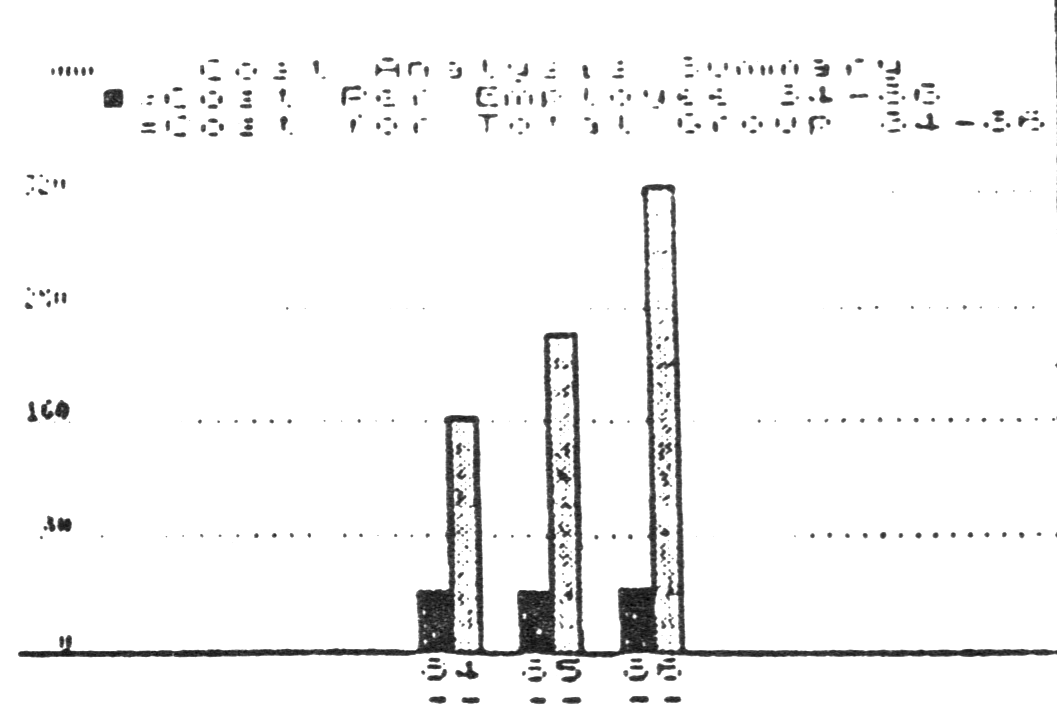
In the compressed mode you can print up to 15 columns across. Any use of the histogram feature (6 address is 64450 and is entered after pressing the x function) will return the printer to the standard print size.
Evidently data produced on the Spectrum software can be LOADed and processed by the Timex program.
I hope you find this of some assistance. Keep in touch.
Karl Smith
/Editors note: We hope these pages have been helpful. As always if you wish to contribute drop us a note to ATSU HOME COMPUTER USERS, PO BOX 16274, COLUMBUS, OH 43216,USA or via MCIMail to Ray Thornton or Donald Guess, Jr.
ATSU N/L Oct, ’85
PO Box 16274
Columbus OH 43216
Please write and tell us what you think of the three column format.
AERCO INTERFACE WITH THE SPECTRUM ROM______ by Joe Williamson
(SUM, of Gainesville, FL. April’85, via TIMELINEZ, Pacifica, CA. Aug’85)
If you have converted our 2068 to a Spectrum and have the Aerco parallel printer interface, here are the changes needed to run the print driver software supplied with the interface while in Spectrum mode.
First, place your computer in Spectrum mode and load in the Aerco print driver software. When loaded, break into BASIC (don’t initialize it like the program tells you to do- you’ll just crash). Once in BASIC, LIST line 9992 and EDIT. On line two and three where it says POKE 26704 and POKE 26703, change the 26704 to 23750, and change 26703 to 26749. Press ENTER. In the immediate mode (no line numbers) enter:
POKE 64441,201
POKE 64521,84
POKE 64522,31
Now run the program with GOTO 1 and choose the initialize routine. You are now set up to drive your printer while in Spectrum mode! Be sure you save this version.
Loading Tasword II on the A & J Microdrive
Using the A & J Microdrive to load Tasword II takes less than 30 seconds! But to SAVE the program and files created by it requires some modifications to the BASIC part of Tasword II.
To make the changes, LOAD Tasword off tape and choose the BASIC option. DELETE lines 11, 15, 700 and 710. Now add the following lines:
15 POKE VAL "23609", VAL "2": CLEAR
VAL "33279": GO SUB VAL "4000":
LOAD "@tasword"CODE: CLS: LET a=USR
VAL "59061": GO TO VAL "10"

700 CLS: LET a$="@tasword": SAVE
"@1,tasword"LINE 15

710 SAVE "@2,tasword"CODE 54784,
10751

1060 IF a$(1)<>"@" THEN GO TO 1100

1070 LET a$(2 TO )=a$(4 TO )
These changes allow you to use either cassette or microdrive for saving files. Just remember to begin files for the microdrives with @ and the number of the file followed by a comma and the file name up to 7 characters long. Files without the @ will save to the cassette. (Example: @1,sample)
To SAVE Tasword to microdrive after the above changes GO TO 1 and then select the “Save Tasword” option. Save it on a 20′ cartridge with no other files on it.
To LOAD Tasword, type LOAD “@tasword” RETURN.
SUM 4/85
CRYPTOGRAM:
BPPZ XPC S IPPA SRRBTUSOTPE RCPICSY. TO USE YSZN SBB OWN ATXXNCNEUN DWNE MPL ANUTAN DWNOWNC MPLC UPYRLONC ISOWNCG ASOS PC ALGO.
CRYPTOGRAM Solution:
LOOK FOR A GOOD APPLICATION PROGRAM. IT CAN MAKE ALL THE DIFFERENCE WHEN YOU DECIDE WHETHER YOUR COMPUTER GATHERS DATA OR DUST.