
Generally SYNC prefers articles in some depth to help you get more out of your computer. However, we receive many short programs that illustrate a point, demonstrate a technique, or show something the reader has found interesting. “Just for Fun” shares these programs with you. If you learn something, great. If you have some fun, great. If you have some that you want to share, send them to: Just for Fun, SYNC, 39 E. Hanover Ave., Morris Plains, NJ 07950.
Horizontal Bar Graph
Michael W. Schultz
8K ROM; 2K (1K) RAM
Type in the program. Then with your computer in either FAST or SLOW mode, hit RUN and ENTER. As the prompts appear, enter the starting year of your graph, the number of bars you wish to compare, and the interval between years (e.g., 1, 5, 10). When the words “HORIZONTAL BAR GRAPH” appear on the screen, begin entering the data, one number at a time. Each value must be below 51 so scale your data accordingly if you are INPUTting larger numbers. The first year entered will be shown with its bar graph and the exact data number. As each following year is shown, the display will be SCROLLed up the screen; after about twenty bars the display will start disappearing off the top of the screen.
 10 REM "HORIZONTAL BAR GRAPH"
 20 PRINT "ENTER YEAR TO START
GRAPH"
 30 INPUT D
 40 PRINT
 50 PRINT "ENTER NUMBER OF BARS
DESIRED"
 60 INPUT N
 70 PRINT
 80 PRINT "ENTER INTERVAL BETWE
EN YEARS"
 90 INPUT A
110 SCROLL
120 PRINT TAB 5;"HORIZONTAL BAR
GRPH"
130 FOR I=1 TO N
140 SCROLL
150 INPUT Z
160 PRINT D
170 FOR X=8 TO Z+8
180 PLOT X,0
190 NEXT X
200 PRINT Z
210 LET D=D+A
220 NEXT I
This program is designed to be flexible in structure so the user can easily edit it to meet his individual needs, such as personal finances, business applications, and so on. This can be done by simply changing the prompts in lines 20 and 80.
Bar graphs, either vertical or horizontal, are very useful as visual aids in comparing statistical values. Vertical graphs are more impressive but require more programming expertise, as anyone who has tried to combine the relationships of PLOT, PRINT AT, or TAB can testify.

The program cannot produce a complete screen of full bars with only 1K, but if the data is not 50 each time, the program can be used with only 1K. To get the most out the program, the prompts can be shortened (or even omitted) and line 10 can be deleted. Users with 2K need not worry about memory because the program and display is well under 2K.
Isosceles Triangle
Michael W. Schultz
This program will draw an isosceles triangle, which is any triangle with two equal sides and two equal angles. This is done by drawing the base of the triangle (lines 20-50) and then two ragged lines starting at a fixed point and ending at each end of the base (lines 60-100). These lines are the equal ones and they form two equal angles at the base.
Enter the program in Listing 1. Hit RUN and ENTER in the SLOW or FAST mode. To draw an inverted isosceles triangle make the changes given in Listing 2.
Listing 1.
 10 REM "ISOSCELES TRIANGLE"
 15 REM DRAW THE BASE
 30 FOR X=10 TO 50
 40 PLOT X,10
 50 NEXT X
 55 REM DRAW EACH SIDE TOGETHER
 60 FOR Y=30 TO 10 STEP -1
 80 PLOT Y,Y
 90 PLOT 60-Y,Y
100 NEXT Y
Listing 2.
40 PLOT X,30
60 FOR Y=10 TO 30
80 PLOT Y+20,Y
90 PLOT Y,Y-40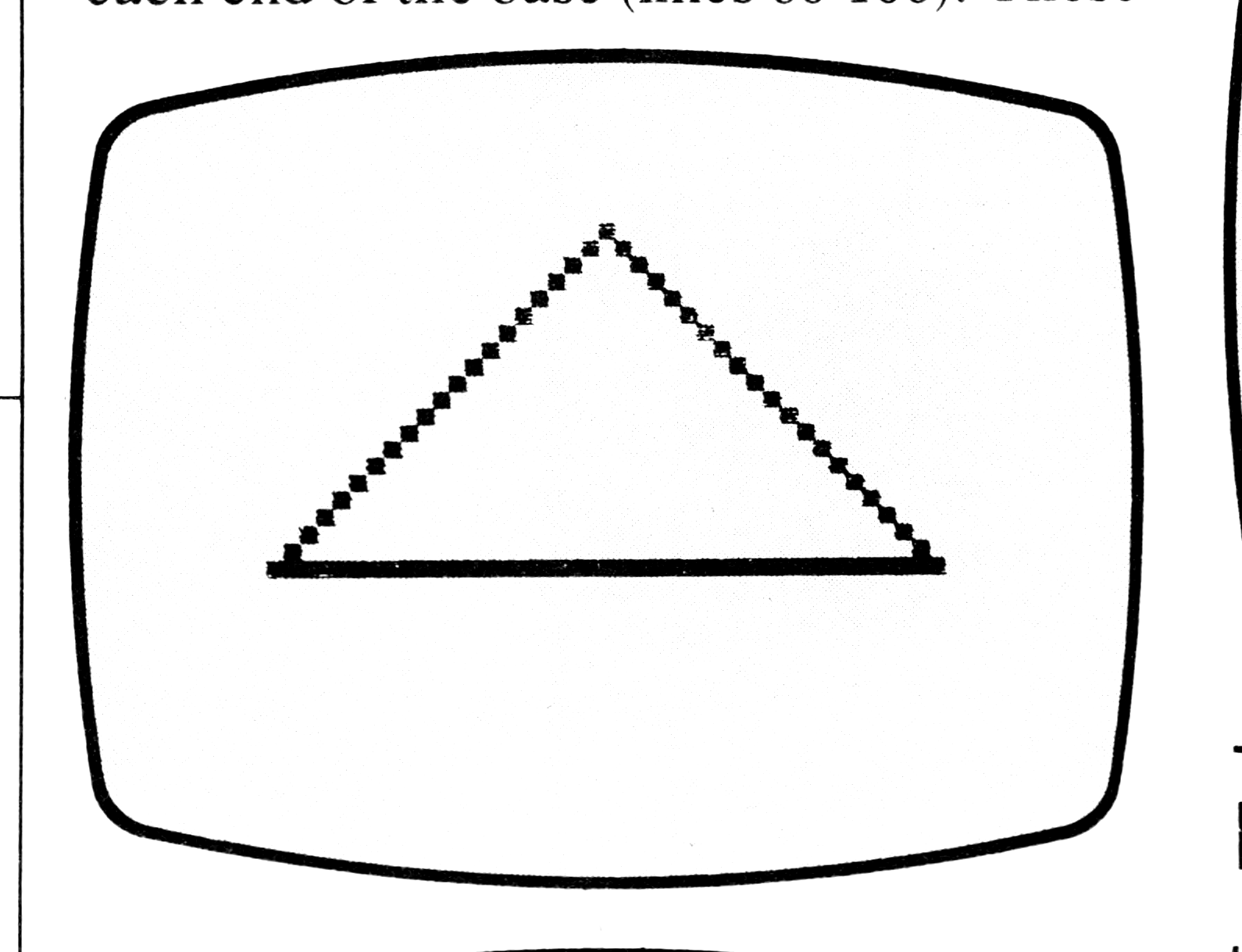

Mandalas
Randy Adams
Type in this short program. It should be RUN in FAST mode. Input values such as 8, 10, 11, 13, 14, 16, 22, 26, 28, 31, 34, 35, 38, 44, 46, 47, 50, etc. Any value from 1 to 100 will work, but not all of them will produce symmetrical figures. Try numbers 31, 32, 35, 38, and 26.
 5 INPUT Z
 7 CLS
10 FOR B=1 TO 20
15 FOR N=1 TO 2*Z
20 PLOT 31-B*COS (N/Z*PI),22+B
*SIN (N/Z*PI)
25 NEXT N
30 NEXT B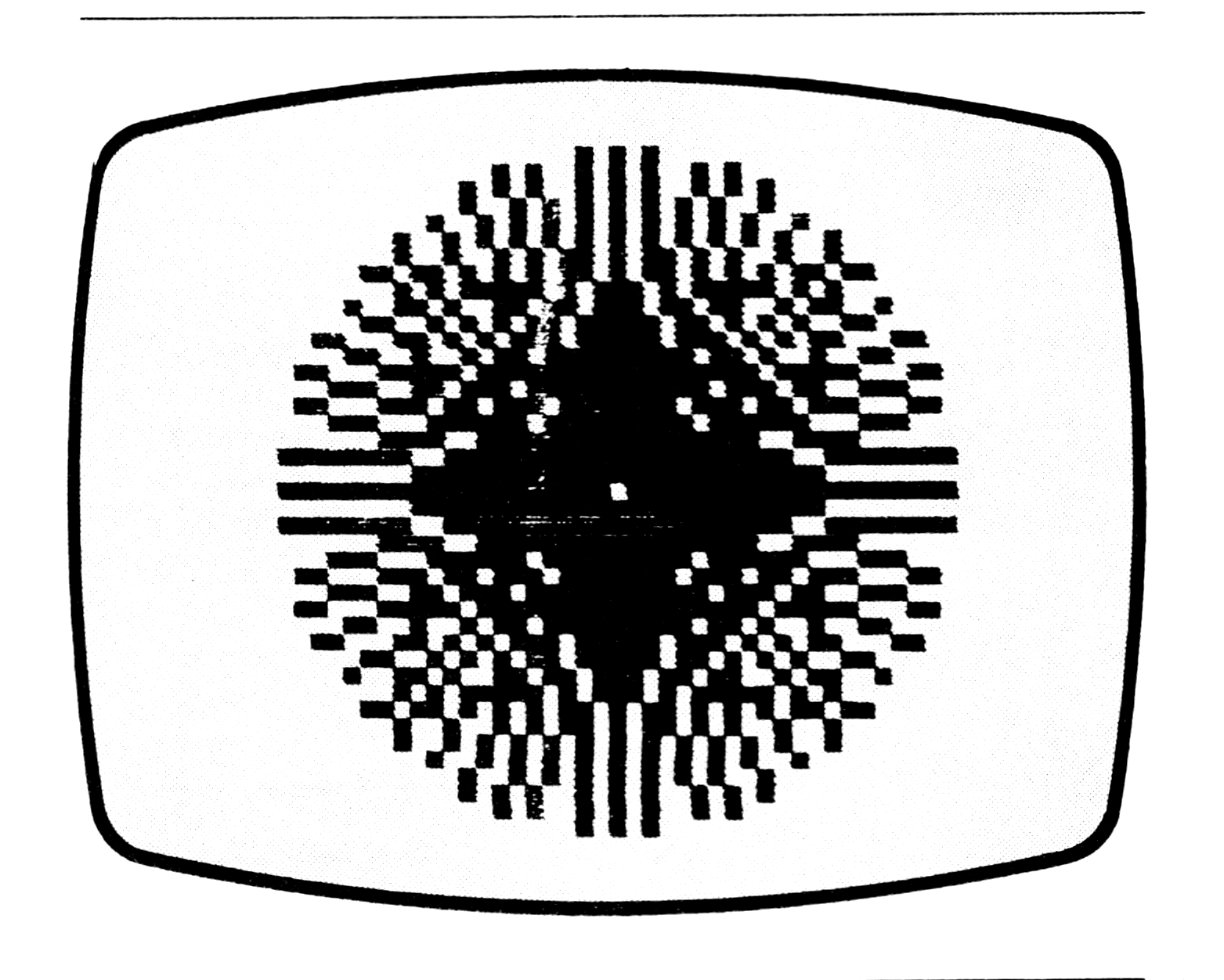
Name Program
Jody Koenig
This program demonstrates a cute trick which can be turned into a very useful and effective teaching program with a few additional lines. To use the program, simply type in the program in Listing 1, put your computer into SLOW mode, and press RUN and ENTER. Add the lines in Listing 2 for a spelling aid. With the addition, you can input a word and go through it one letter at a time by pressing ENTER. The inverse letter makes it easy to see how a word is spelled, and it is especially effective with young children.
Listing 1.
 10 PRINT "INPUT YOUR NAME"
 20 INPUT A$
 30 CLS
 40 LET A$(1)=CHR$ ((CODE A$(1)
)+128)
 45 PRINT AT 10,5;A$
 50 FOR F=2 TO LEN A$
 60 LET A$(F-1)=CHR$ ((CODE A$(
F-1))-128)
 70 LET A$(F)=CHR$ ((CODE A$(F)
)+128)
 80 PRINT AT 10,5;A$
 90 NEXT F
100 LET A$(LEN A$)=CHR$ ((CODE
A$(LEN A$))-128)
110 GOTO 35
Listing 2.
 35 PRINT AT 10,5;A$
 42 INPUT U$
 75 INPUT U$
105 INPUT U$