
Having purchased a 2068 computer, I soon found that I would have to Know at least a basic knowledge of trigonometry if I were going to make graphics to any degree. Not having a working Knowledge of trigonometry, nor a desire to go back to night school to obtain it, I decided to obtain a book on basic trigonometry and try and learn it myself.
Having the book, and the computer, and the desire to learn, the next logical step was to use the computer to help me learn. The results of this endeavor are given in this article. The article is for others, who like myself, desire to learn.
The Trigonometry: Trigonometric functions are based on a circle of
360°. There are three basic functions:
- SIN a = Side opposite/Hypotenuse
- COSINE a = Side adjacent/Hypotenuse
- TANGENT a = Side opposite/Side adjacent
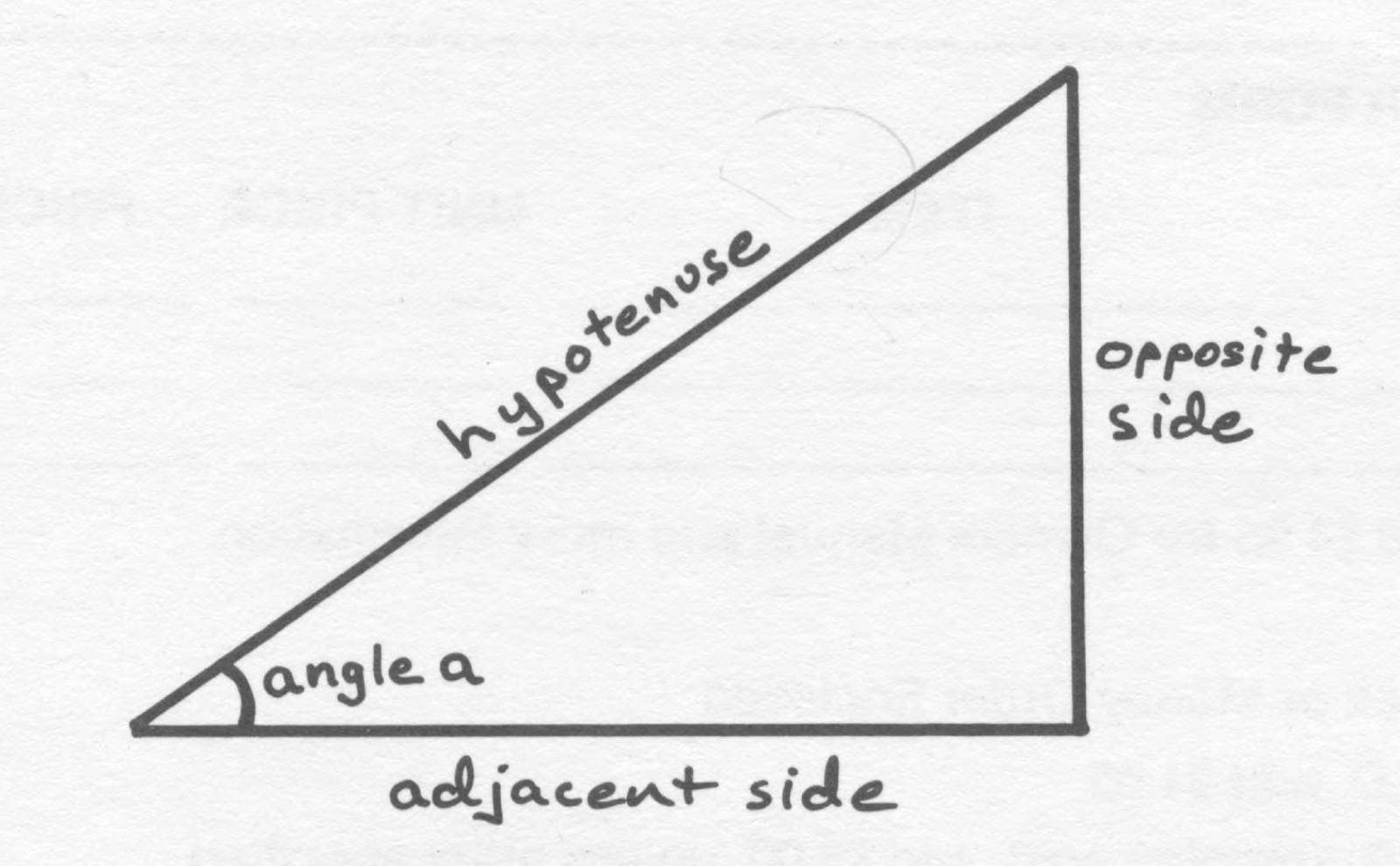
Simply stated, these are the ratios of one side to another with respect to the given angle, a. How do these affect us when doing graphics? Inside the computer there is a number system used to tell the computer where to plot and draw the lines. These locations are found by using the numbers along with a grid system with an X and Y axis. An aid for remembering the direction in which these lines run is: Why (Y) up and down when (X) across? The Y axis runs from the bottom to the top and the X axis runs from left to right on the screen. A third axis is called the Z axis. It runs into the screen in a line of sight fashion. The point where these lines cross is called the origin or vertex. The Z axis is used for three dimensional graphics.
So what is the point of all this? Bear with us a little longer and you will start to see what this is all about. We now introduce some more terms.
The number 3.14159 is »- Known as PI (pied). The RADIAN comes’ from 180°/PI. This gives us 57.3°. Going a step further we have PI/180°. This 13 — .61745. That .18.—to–say, there is .01745 of a radian in 1’. Your 2068 uses this system when calculating parts of a circle.
Diviaging.360° by 57.3. …we. get 6.28, or 2Pl. There are two pi radians in 360°, which is a circle. The circumference of a circle is found by: C=2xPIr where r is- the radius of the circle. Again it is a ratio. The circumference is 2xPI times longer than the radius. The ratio of the circumference to the diameter is PI. Wow, did we need all that? Aren’t you glad this is not a trig. class?
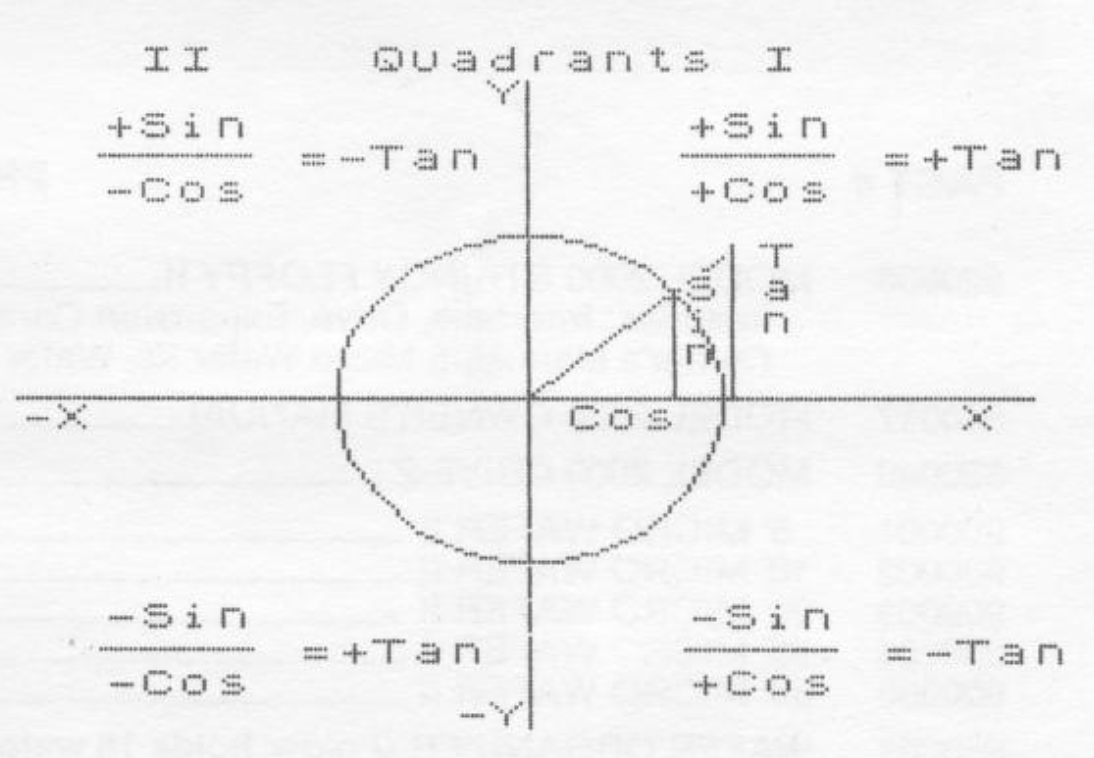
Let us go back to the radius for a minute. If we extend a line outward from the vertex on the xX axis, say to the right side, and then we begin to rotate this line counter-clockwise, each time the line moves through a 90° section of the circle, it is passing through what is called a quadrant. The first 90° is the first quadrant. As it rotates into the next 90° Con its way to 180°) it is entering the second quadrant. When it has passed through the third and fourth quadrant, it is back to where it started from, a full 360°.
Now type the program into your computer and RUN. When the menu appears on the screen, enter 1. This will bring up the graph with the trig. functions on it. Notice that the signs of the trig functions change as the line is rotated through the quadrants. This is the effect of the line as it passes through the quadrants. This must be taken into account when designing graphics. If you ignore the sign changes, you would have a line going in the wrong direction at the wrong time!
After saving the main program, Enter this program into the computer:
   5 FOR A=0 TO 360 STEP 3
  10 LET X=SIN(AX*PI/180)
  15 LET Y=COS(A*PI/180)
  20 PLOT 128,99:DRAW X,Y
  25 NEXT A
Did you run it? if so, you saw what looked like a small Square on the screen. Why was it so small? To see why, we will picK a number out of tne O° TO 360°, say 3O°. The SIN Gf sU 18 0.5. raking the (O05 “oF 30°, we get 0.866. Neither one of these numbers are very large and they have not traveled very far, only 30°. Also they have not moved very far from the vertex. Then we have another factor to consider, that of the step value Therefore, our line is drawn only once every 3°. If you happen to Know the SIN or the COS value of a number, you can find the angle by reversing the trig. function on a calculator.
What we need is a way to magnify the drawing so that we can view it easier. How do we do this? Change line 10 and 15 to read:
  10 LET X=30*SIN(AX*PI/180)
  15 LET Y=15*COS(AX*PI/180)
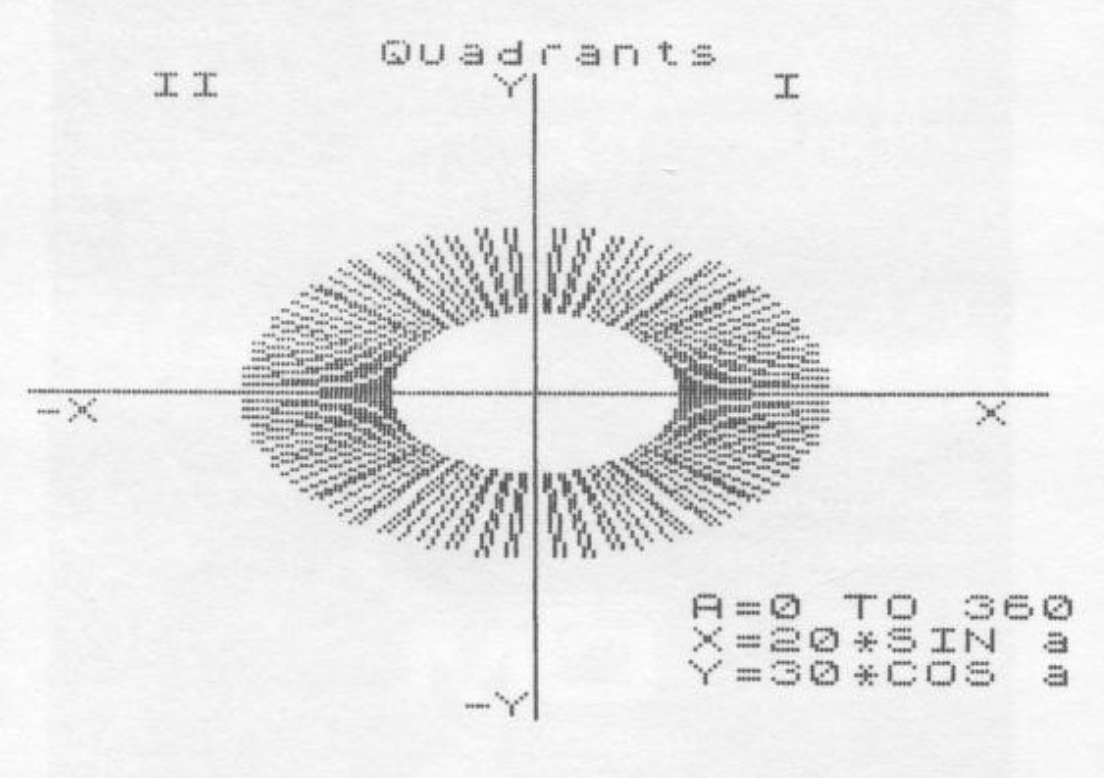
Now run it. How about that? A fancy arc! This is what we thought was a square before. How would you draw a circle without using the circle command? Now what if you want to draw in just the first quadrant? Back to the magic A. Change line 10 to read:
5 FOR A=90 TO 270Try it. As you can see, the multiplier values of 30 and 15 caused the SIN and COS _ to be shifted to an amount great enough to see the drawing clearly. What we have here is a way to shift’ the size of the drawing up or down in size. Now that we Know how to do that, how do we shift the drawing on its axis, that is tilt it?
If you have followed closely what has been covered so far, you will have noticed that the SIN and COS are also a ratio to each other. As one is affected, so is the other. That is as long as they share the same variable.
Remember the quadrants and the rotating line? Load the main program again and bring up the graph. Study the graph until you understand how these functions work. Watch the sign changes!
Now load the next program and watch what happens to the figure:
   5 PLOT 0,88: DRAW 255, 0: PLOT 128,0: DRAW 0,175
  10 FOR A=0 TO 360 STEP 5
  15 LET X=25*SIN (A*PI/180)
  20 LET Y=75*COS (A*PI/180)
  25 PLOT 129,88: DRAW X, Y
  30 NEXT A
When you run the program you will see that the figure appears to have turned on its axis. We told the computer to increase the COS value by an amount in which the ratio of the SIN to the COS makes it look like it turned. We have the trigonometry working for us in much the same way an artist does his pencil, with the screen being the paper.
We have learned how to magnify our views by simply changing the simply value of the SIN and COS by using a multiplier. By changing the value of the variable, we were able to start the drawing at a different quadrant. Try various combinations of functions.
Just think of the advanced graphic capabilities in this machine which we haven’t even covered here. There will be very little that you will not be able to do with it.
We need to mention the third function, the tangent. On the graph of the main program is a line running perpendicular to the X axis and at the outer edge of the circumference, this is the tangent. To see an affect of the tangent, change line 15 to read:
15 LET X=25*SIN(A*PI/180)*TAN A/10You can create some unusual designs using this function as well. Type in the following:
   5 PLOT 0,88: DRAW 255,0: PLOT 128,0: DRAW 0,175
  10 FOR A=0 TO 360 STEP 5
  15 LET X=25*SIN (A*PI/180)
  20 LET Y=-COS (A*PI/180)*2
  25 LET Z=10*TAN (A*PI/3)
  30 PLOT 129,88: DRAW X, Y
  35 PLOT 50,88: DRAW X,Y,Z
  40 NEXT A
Now try taking some of the examples we have given and use your imagination to see what you might do with them. Try removing the DRAW statements and leaving just the plots. Change values, sign, etc. You be the artist.
We have tried to present some of the things that we have learned along the way. It is hoped that others will be encouraged to experiment on their own. There are unlimited possibilities with this machine. The graphics are all there, all you have to do is get them out.
You might get a book on trigonometry and learn more about it. It can be a lot of fun trying to draw these graphics. (Ed’s note: Some of the best designs I came up with was in the “Dividing PI by Degrees” section which starts at line 500. Try using 245 & 90, 245 & 45, and 120 & 240. To watch the graph build even more, change the 360 in line 510 to something a lot higher like 720. )
Note: Type-in program listings on this website use ZMAKEBAS notation for graphics characters.